Property Sheet and Object Serialization

The form designer property sheet will pickup any public custom properties (fields) that you expose via your CustomControl class. For example, adding a field Public MyField As Long will then automatically show up in the control property sheet in the form designer:
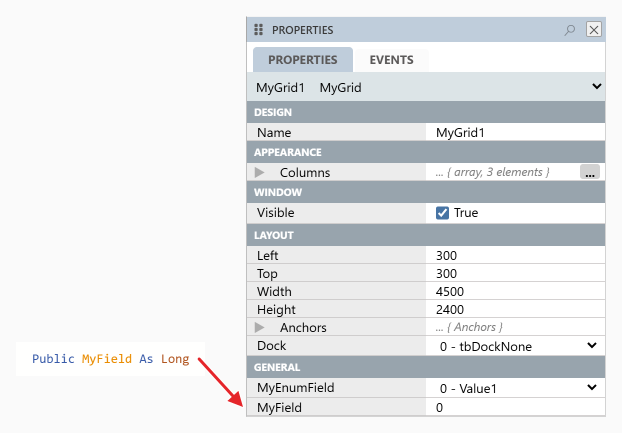
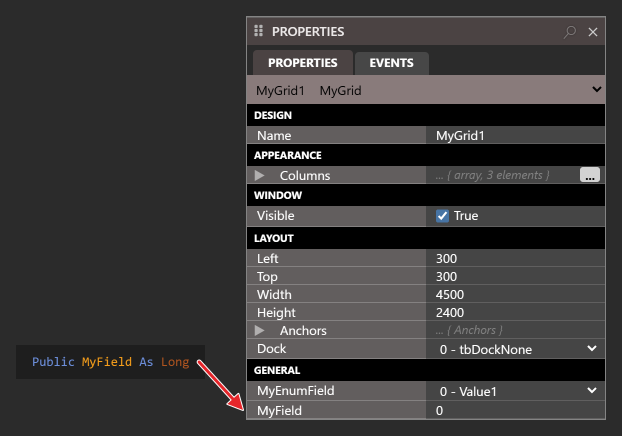
The declaration Public MyField As Long in the code of a custom control, MyGrid, with an arrow to the MyField row of the PROPERTIES panel for MyGrid1, a MyGrid on a form. The panel lists the control’s properties by group, from Name down to MyEnumField and MyField, and MyField is 0.The declaration Public MyField As Long in the code of a custom control, MyGrid, with an arrow to the MyField row of the PROPERTIES panel for MyGrid1, a MyGrid on a form. The panel lists the control’s properties by group, from Name down to MyEnumField and MyField, and MyField is 0.

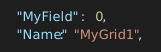
This is then persisted to your project as properties inside your form JSON structure:
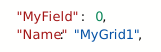
Two lines of a form’s JSON: the MyField property of the control MyGrid1 with the value 0, and the Name property with the value MyGrid1.Two lines of a form’s JSON: the MyField property of the control MyGrid1 with the value 0, and the Name property with the value MyGrid1.

The key to making this work is your control’s Initialize method, which loads the saved values through the serializer that its Context object provides. It might look something like this:

Private Sub OnInitialize(ByVal Context As CustomControls.CustomControlContext) _
        Implements CustomControls.ICustomControl.Initialize
   If Not Context.GetSerializer.RuntimeUISrzDeserialize(Me, False) Then
      InitializeDefaultValues  ' you implement this
   End If
   ' ...
End Sub

If RuntimeUISrzDeserialize(Me, False) returns True, then your class properties were synchronized with the properties set via the form designer. If it returns False then the control has just been added to the form, and this gives you an opportunity to setup any suitable default values for your custom public properties. The form designer notices default values you set within Initialize, so that your property sheet is kept in-sync.


Default Values

An alternative method for setting up default values is to inline them into the class field definition:
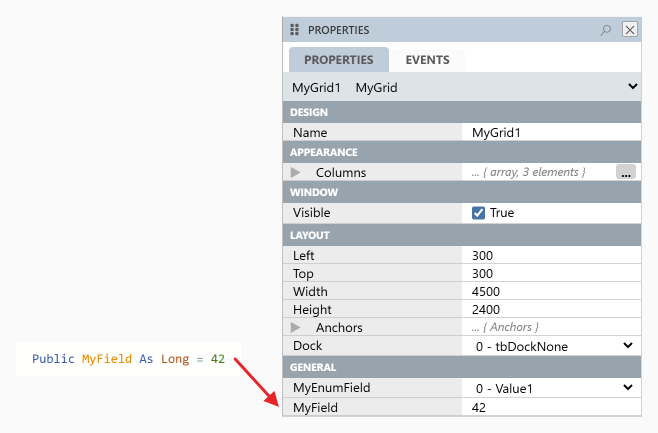
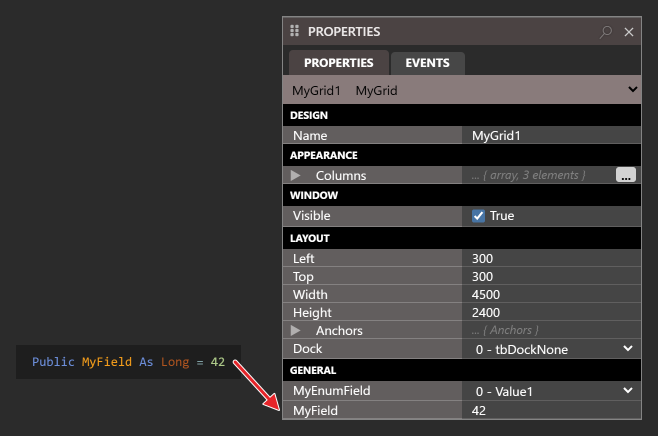
The declaration Public MyField As Long = 42, with an arrow to the MyField row of the PROPERTIES panel for MyGrid1, which now shows 42.The declaration Public MyField As Long = 42, with an arrow to the MyField row of the PROPERTIES panel for MyGrid1, which now shows 42.

The RuntimeUISrzDeserialize(Me, False) call inside your Initialize method will overwrite the property value if the control is being synchronized from the persisted property sheet data.


Enumerations

Enumerations that you define in your twinBASIC project are supported. Simply expose a class field with the enumeration:
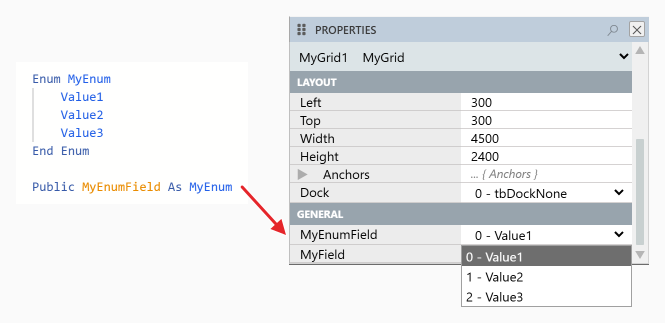
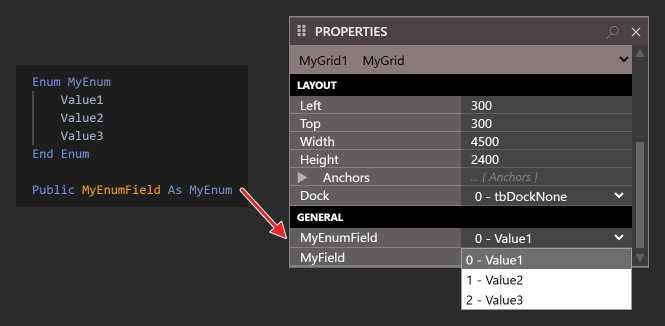
An enumeration, MyEnum, of Value1, Value2 and Value3, and below it the declaration Public MyEnumField As MyEnum, with an arrow to the MyEnumField row of the PROPERTIES panel for MyGrid1. The row’s dropdown is open on 0 - Value1, 1 - Value2 and 2 - Value3, the first marked as the current value.An enumeration, MyEnum, of Value1, Value2 and Value3, and below it the declaration Public MyEnumField As MyEnum, with an arrow to the MyEnumField row of the PROPERTIES panel for MyGrid1. The row’s dropdown is open on 0 - Value1, 1 - Value2 and 2 - Value3, the first marked as the current value.

Note: Enumerations are persisted to the form JSON structure as strings, so bare this in mind when making changes/updates to a CustomControl so that you don’t introduce breaking changes by renaming an enumeration value.


Objects

Class objects that you define in your twinBASIC project are supported. You must supply a ClassId attribute for any exposed object, so that the serialization can identify it.
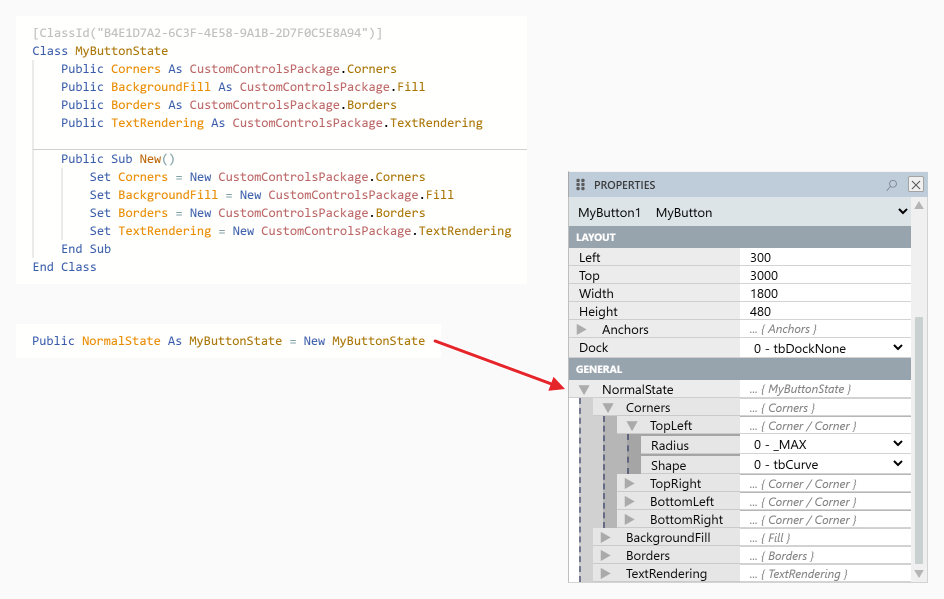
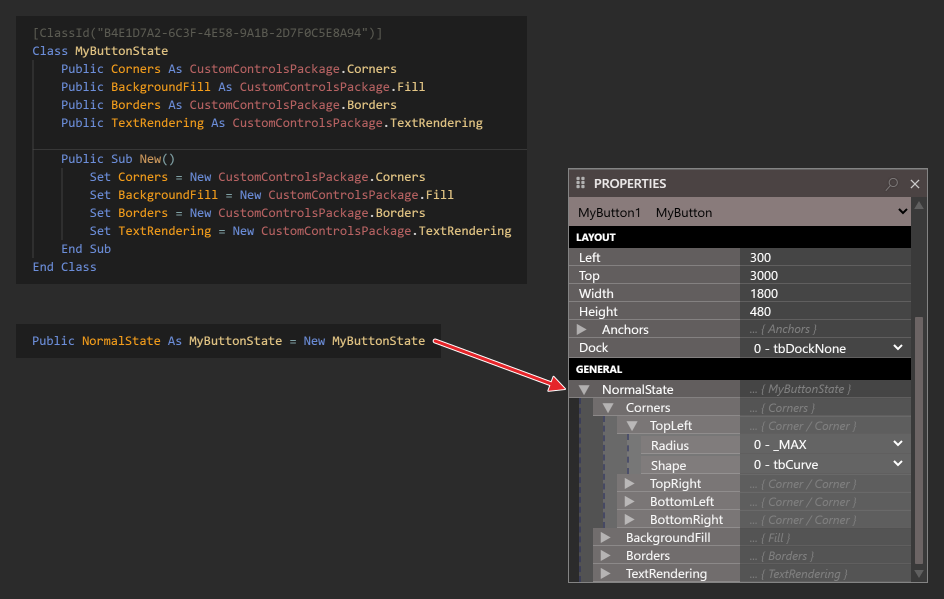
A class, MyButtonState, with its ClassId attribute and four public fields of the CustomControls package’s Corners, Fill, Borders and TextRendering classes, which its Sub New creates. Below it the declaration Public NormalState As MyButtonState = New MyButtonState, with an arrow to the NormalState row of the PROPERTIES panel for MyButton1. NormalState is open on Corners, BackgroundFill, Borders and TextRendering, Corners on TopLeft, TopRight, BottomLeft and BottomRight, and TopLeft on its Radius and Shape.A class, MyButtonState, with its ClassId attribute and four public fields of the CustomControls package’s Corners, Fill, Borders and TextRendering classes, which its Sub New creates. Below it the declaration Public NormalState As MyButtonState = New MyButtonState, with an arrow to the NormalState row of the PROPERTIES panel for MyButton1. NormalState is open on Corners, BackgroundFill, Borders and TextRendering, Corners on TopLeft, TopRight, BottomLeft and BottomRight, and TopLeft on its Radius and Shape.

Arrays

Arrays are supported. The form designer allows for adding new elements, removing elements, and re-ordering of elements (via drag/drop).
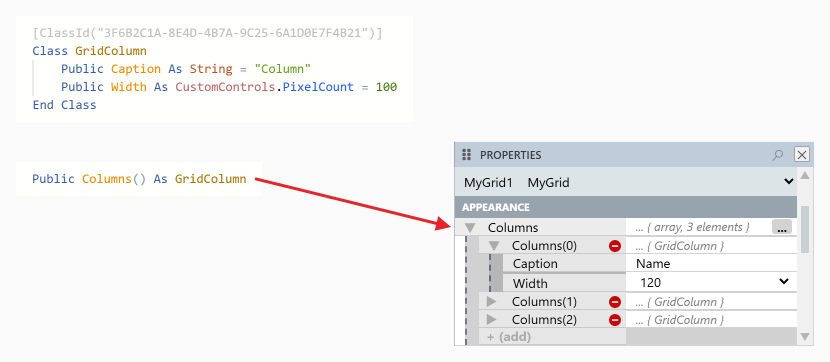
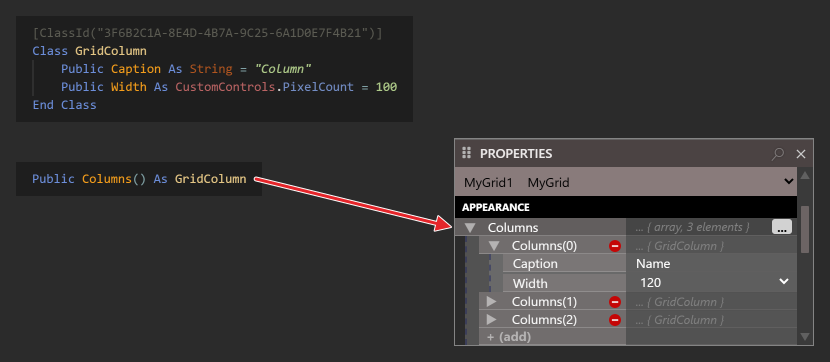
A class, GridColumn, with its ClassId attribute and a Caption and a Width field, and the declaration Public Columns() As GridColumn, with an arrow to the Columns row of the PROPERTIES panel for MyGrid1. Columns is open on its three elements, Columns(0) to Columns(2), each with a button that removes it, and an (add) row below them; Columns(0) is open on its Caption and Width.A class, GridColumn, with its ClassId attribute and a Caption and a Width field, and the declaration Public Columns() As GridColumn, with an arrow to the Columns row of the PROPERTIES panel for MyGrid1. Columns is open on its three elements, Columns(0) to Columns(2), each with a button that removes it, and an (add) row below them; Columns(0) is open on its Caption and Width.

Property Get / Let

Custom property procedures are supported. You will find that using Property Get / Let procedures is required if you want property changes to trigger repainting of your control.
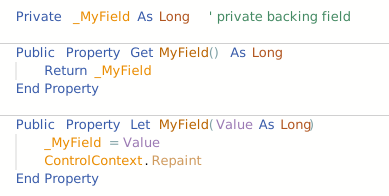
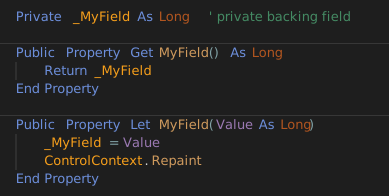
A private field _MyField, and a Property Get and a Property Let for MyField. The Property Get returns _MyField. The Property Let stores the value in _MyField and calls ControlContext.Repaint.A private field _MyField, and a Property Get and a Property Let for MyField. The Property Get returns _MyField. The Property Let stores the value in _MyField and calls ControlContext.Repaint.

Note that private fields and properties do not form part of the serialization, and so will not appear on the property sheet.


Avoid Variants

The serialization does not support Variants or generic Objects. Always use strongly-typed datatypes.


Events

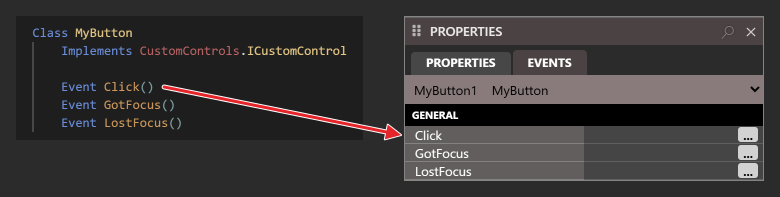
Events that you define in your class are listed on the EVENTS tab of the PROPERTIES panel:
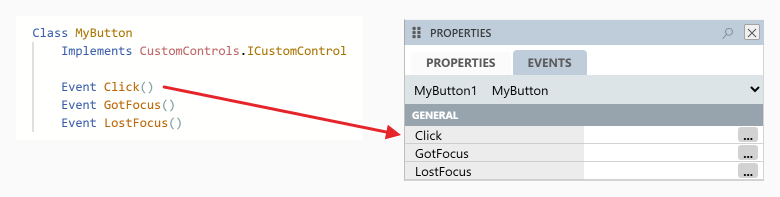
The class MyButton with its events Click, GotFocus and LostFocus, and an arrow to the EVENTS tab of the PROPERTIES panel for MyButton1, which lists the same three events.The class MyButton with its events Click, GotFocus and LostFocus, and an arrow to the EVENTS tab of the PROPERTIES panel for MyButton1, which lists the same three events.

At the moment, the form-designer doesn’t yet support code-behind-forms, so this feature is not yet complete.

Tip

If you make changes to your CustomControl class, such as exposing new properties or changing how a control is drawn, these changes will get reflected immediately to any open form designers. A form designer that is open behind the code refreshes itself when you return to it, and the changes are then apparent. See RESYNC.

Tip

The serialization happens via JSON when running in the IDE, but via a binary format when running in a compiled DLL/EXE. The SerializeInfo object that GetSerializer() returns is a different implementation when running in the IDE, but this should be transparent to you as a CustomControl implementer.

Tip

When making changes or updates to a CustomControl always consider backwards compatibility. For example, if you rename an exposed property, the old property values stored via the property sheet won’t be deserialized to your new property.


See also