Modern IDE Features
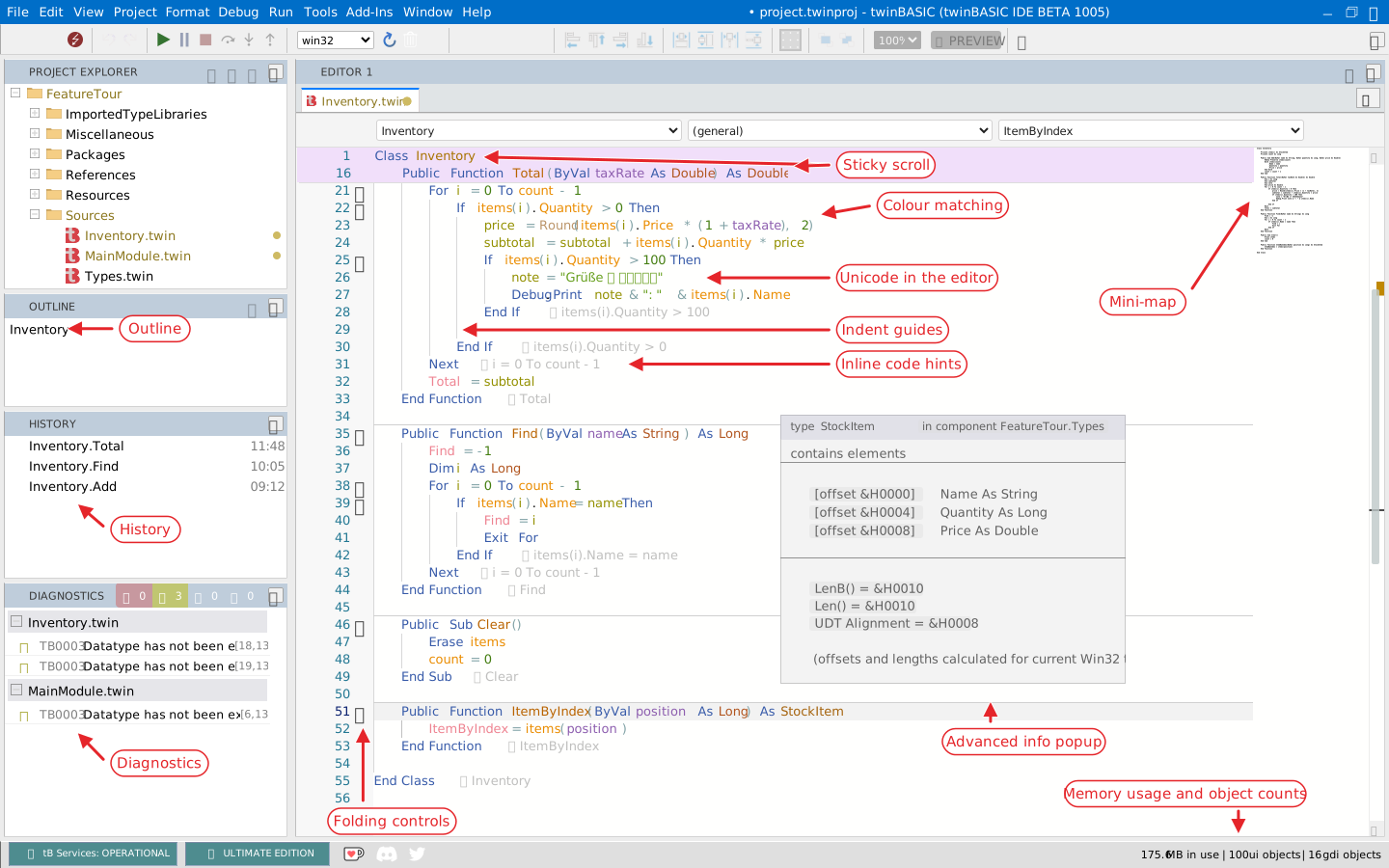
While the twinBASIC IDE still has a lot of work planned, it already includes a number of features that make life much easier found in other modern IDE, but not the ancient VBx IDEs.
Theme System
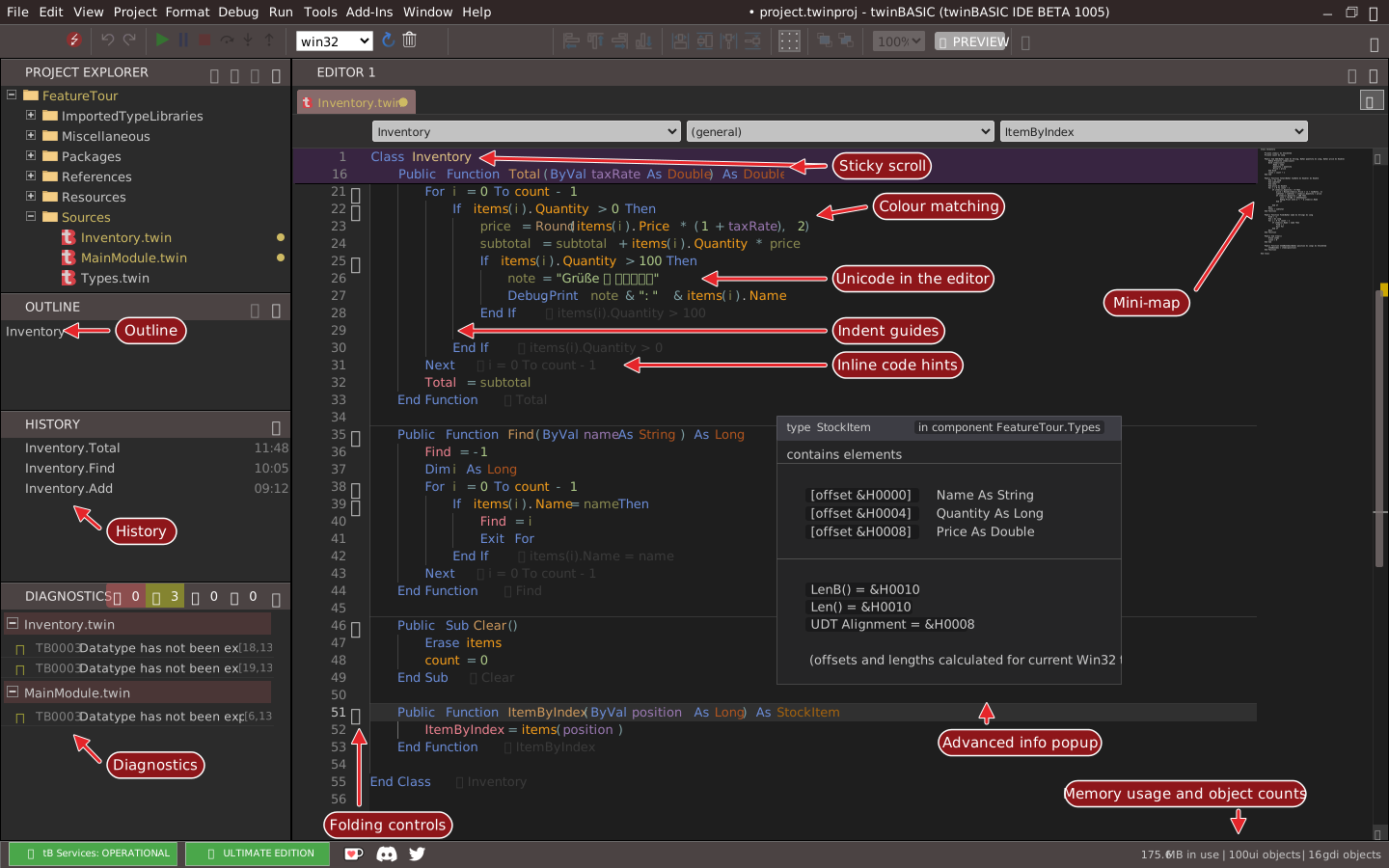
Fully theme-able, with Dark (default), Light, and Classic (Light) built in. A theme is a short .theme text file of Name: value; pairs, which can inherit from another theme, so adding your own takes one small file. Themes explains how.
Code Navigation and Structure
- Code folding, with foldable custom-defined regions via
#Region "name" ... #End Regionblocks. - Sticky-scroll, which keeps context lines at the top showing major sections of code like module, region, method,
Withblocks, etc. - Indent guides, lines drawn along common indent points to help line things up right.
- Code mini-map, shows a graphics overview of the code structure alongside the scroll bar, helping to guide your scrolling.
Editing Features
- Fully customizable keyboard shortcuts covering all commands. You keep your changes in groups that you switch on and off, and each group is layered on top of the built-in keys. See Keyboard shortcuts.
- Auto-indent on paste, and paste as comment. See Copy, cut and paste.
- Inline code hints, which provide annotations at the end of blocks for what the block is (see picture). See Inline code hints.
- Color-matching for parentheses and brackets, which the theme sets.
- Several cursors, bookmarks, a list of recently closed tabs and combo boxes that insert event handlers. Writing code describes the editor in full.
Advanced Features
- Full Unicode support in .twin files, so you can use the full Unicode range of the font in your comments and strings.
- Advanced Information popup, which shows offsets for UDT members, their total size via both
Len()plusLenB(), and their alignment; and v-table entry offsets for interfaces and classes, as well as their inheritance chain. - A type library viewer for controls and TLB files that displays the full contents in twinBASIC-style syntax rather than ODL.
Panels and Windows
- A History panel containing a list of the places you edited recently. See History.
- An Outline panel with selectable categories. See Outline.
- A Diagnostics panel (the Problems panel), which lists all current errors, warnings, hints and information messages, and which you can filter by kind. See Diagnostics.
Form Designer Enhancements
On the Form Designer, control with Visible = False are faded to visually indicate this. Also, pressing and holding Control shows the tab index of each tab stop.
New Code-Based Project Explorer
A new code structure based Project Explorer:
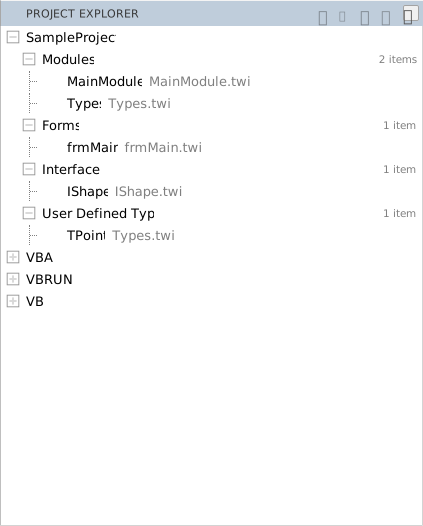
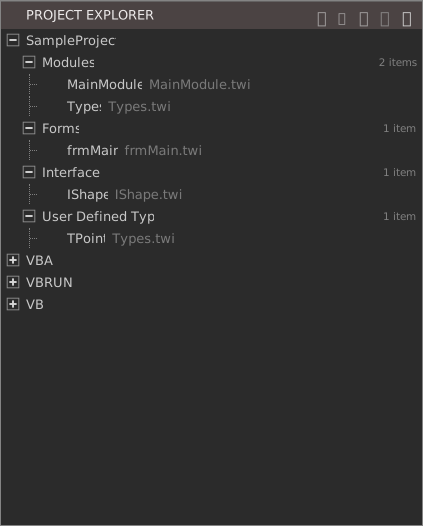
The classic file-based view is still used by default, you can activate the new view with a toggle button:


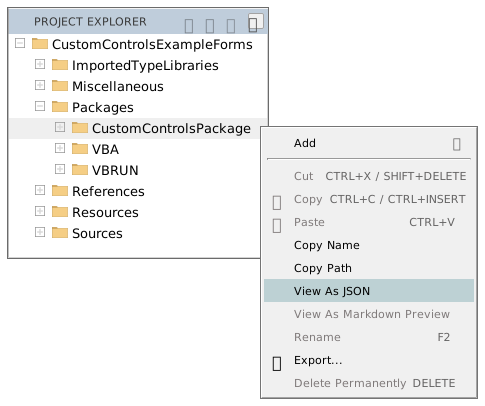
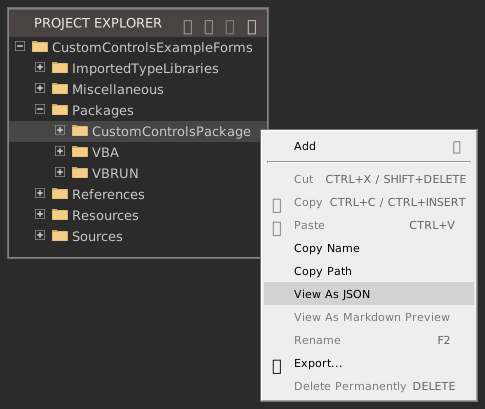
View Forms and Packages as JSON
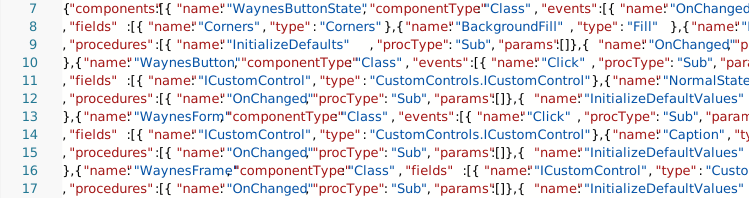
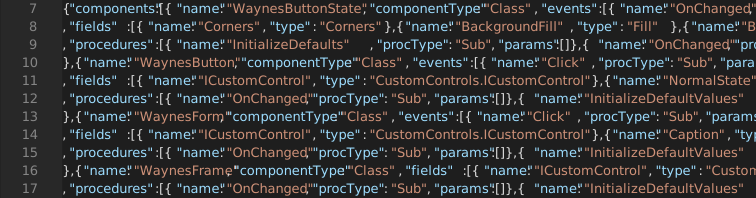
Project forms and packages are stored as JSON format data, and you can view this by right-click in Project Explorer and selecting View As JSON. This is particularly interesting for packages as it exposes the entire code in a more parseable format.