Importing a package from a TWINPACK file
To import a package directly from a TWINPACK file (instead of using TWINSERV), follow these steps.
- open the project from which you want to use a package
- open the
Settingsfile within it - navigate to the Library References section
-
select the Available Packages tab


-
press the Import from file… button:


-
choose the TWINPACK file you want to import. The package is added to the Available Packages list, but BETA 1005 does not tick it: tick it yourself. It then appears, ticked, on the Enabled Libraries tab, marked
[EMBEDDED-PACKAGE]:

- press Apply Changes
A project cannot import a package it already contains. If it holds an earlier build of the same package, the import is refused with Failed to add package; '<name>' conflicts with an existing imported package., whatever the new build’s Version. To replace the earlier build, see Updating a package you built yourself.
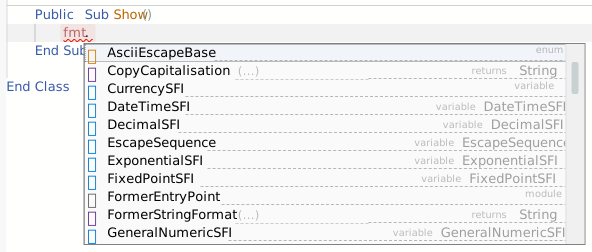
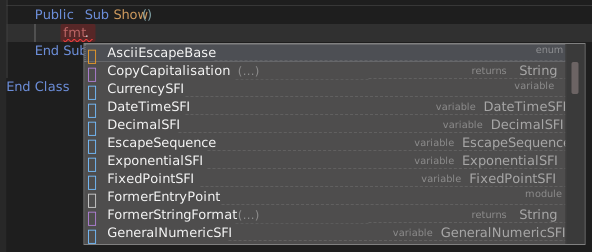
Now you’re ready to use the package! In the example shown above I added a reference to the CSharpishStringFormater package, and I can now confirm that I can access components from the package in my code: