Hex Editor
Shows and edits the bytes of any file in the project, in hexadecimal and as text. The add-in ships with the IDE, in the install’s addins\win32 and addins\win64 folders, so there is nothing to install. Its source is Sample 24.
Opening a file
A file whose extension is .bin or .dat opens in the Hex Editor when you double-click it in the Project Explorer. Any other file opens in it from the Project Explorer’s right-click menu: choose Open with → Hex Editor. A file that is open in another editor is closed first, and the IDE asks whether to save it if it has changes.
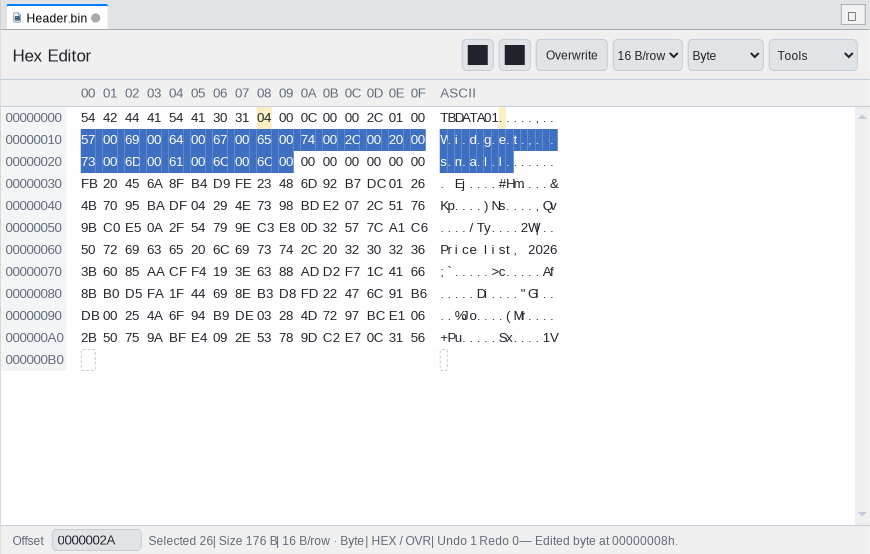
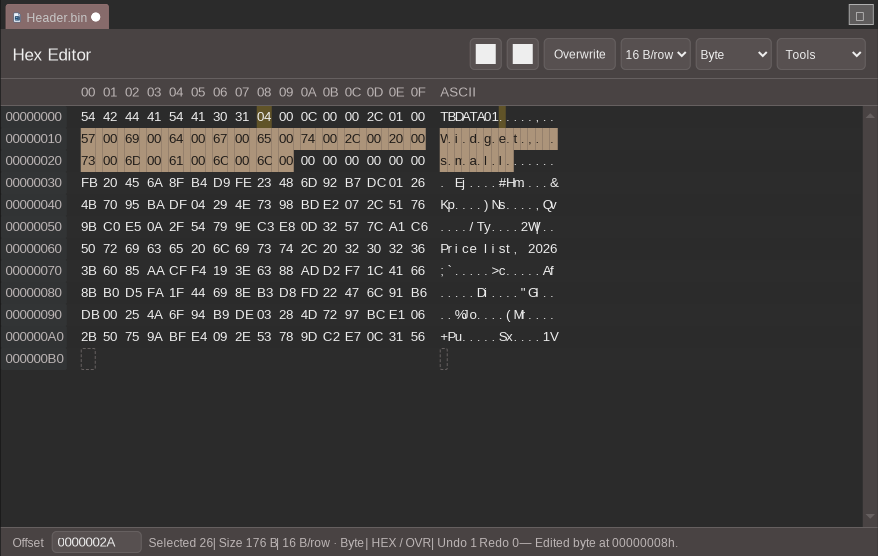
The editor opens in a tab of its own, like a code file. It has a toolbar at the top, the bytes in the middle and a footer at the bottom.
Reading the bytes
Each row starts with its offset, eight hexadecimal digits, then the bytes in hexadecimal, then the same bytes as text. A byte that is not a printable character shows as a dot in the text column. Bytes you have changed since the file was last saved are highlighted.
The toolbar sets how the bytes are laid out:
- B/row
- The number of bytes in a row: 1, 2, 4, 8, 16, 32 or 64. The default is 16.
- Grouping
- Puts the hexadecimal digits of 1, 2, 4 or 8 bytes together, as a Byte, an Integer, a Long or a LongLong. It changes only how the bytes are shown, not their order.
The status line under the bytes shows how many bytes are selected, the file’s size, the layout, the mode and how many steps you can undo and redo.
Editing
Click a byte in the hexadecimal column to type hexadecimal digits, or in the text column to type characters. In the hexadecimal column each digit sets half a byte. In the text column each character you type must have a code from 0 to 255.
The Insert button switches between overwriting the bytes under the cursor, the default, and inserting new bytes; Insert does the same. Typing past the end of the file adds bytes. Backspace deletes the byte before the cursor and Delete the byte at it, or the selected bytes.
Each change goes into the project at once, so the tab is marked as changed. The file on disk changes when you save the project.
Undo (Ctrl+Z) and Redo (Ctrl+Y) keep the last 128 changes. The bytes you type one after the other are one change.
Keys and the mouse
| Key | What it does |
|---|---|
| Left, Right, Up, Down | Move the cursor. In the hexadecimal column Left and Right move by half a byte. |
| Shift with an arrow | Selects from the cursor. |
| Page Up, Page Down | Move by a screenful. |
| Home, End | Go to the start or the end of the row. |
| Ctrl+A | Selects every byte. |
| Ctrl+C, Ctrl+V | Copy and paste; see Copy and paste. |
| Ctrl+F, Ctrl+H | Open the find panel, and the find and replace panel. |
| Escape | Clears the selection. |
Press the mouse button on a byte and drag to select, or Shift+click to select from the cursor. The mouse wheel scrolls.
The keys work while the bytes have the focus, not while you type in one of the editor’s boxes.
The Tools menu
- Find… and Replace…
- Open the find panel; see Find and replace.
- Hide ASCII dots and Show ASCII dots
- Show the bytes that are not printable characters as blanks, or as dots, in the text column.
- Copy as hex
- Copies the selected bytes; see Copy and paste.
- Paste
- Pastes at the cursor.
- Select all
- Selects every byte.
- Delete selection
- Deletes the selected bytes, or the byte at the cursor when nothing is selected.
Find and replace
The find panel opens under the toolbar. Choose what the text you type is:
- Hex bytes
- Pairs of hexadecimal digits, such as
4D 5A. Spaces, tabs, commas, colons and hyphens may separate the pairs. - ASCII text
- Characters with codes from 0 to 127.
- Unicode (UTF-16)
- Text, searched for as UTF-16 little-endian bytes without a byte order mark.
Enter in the find box finds the next match after the cursor, and the search goes on from the start of the file once. The footer says Found n byte(s) at XXXXXXXXh. or Pattern not found.
In the replace box, Enter replaces the selected bytes when they are a match, or else the next match. There is no command that replaces every match at once. Escape closes the panel.
Go to an offset
Type an offset in hexadecimal in the Offset box of the footer and press Enter. It may start with 0x, &, &H or H, and may be any offset from 0 to the file’s length.
Copy and paste
Ctrl+C copies the selected bytes as hexadecimal text, from either column, up to 1 MB at a time. With nothing selected it copies the byte at the cursor.
Ctrl+V pastes at the cursor, up to 4 MB. In the hexadecimal column the text must be pairs of hexadecimal digits. In the text column each character becomes one byte.